Friday, 27 October 2017

بھارت نے کلبھوشن یادیوتک قونصلررسائی مانگ لی، ماں کو ویزہ دینے کی درخواست

0 comments


بھارت نے کلبھوشن یادیوتک قونصلررسائی مانگ لی، ماں کو ویزہ دینے کی درخواست

بھارت نے کلبھوشن یادیوتک قونصلررسائی مانگ لی، ماں کو ویزہ دینے کی درخواست

پاکستانی ہائی کمشنرکی بھارتی وزیرخارجہ سےہونیوالی ملاقات پرخواجہ آصف کو بریفنگ،بھارت سے ایل اوسی پر بلااشتعال فائرنگ اورکشمیرمیں انسانی حقوق کی خلاف ورزیوں کامعاملہ اٹھایا ہے۔میڈیا رپورٹس

اسلام آباد(اردوپوائنٹ تازہ ترین اخبار۔27 اکتوبر2017ء ):وزیرخارجہ خواجہ آصف سے بھارت میں پاکستانی ہائی کمشنرسہیل محمود نے ملاقات کی،جس میں سہیل محمود نے بھارتی وزیرخارجہ سے ہونیوالی ملاقات پر بریفنگ دی۔ میڈیا رپورٹس کے مطابق آج اسلام آباد میں وزیرخارجہ خواجہ آصف سے نئی دہلی میں پاکستانی ہائی کمشنرسہیل محمود نے ملاقات کی۔انہوں نے وزیرخارجہ کوبریفنگ میں بتایاکہ بھارتی وزیرخارجہ سے ملاقات میں مسئلہ کشمیراور ایل اوسی پرفائرنگ کے ایشوکواٹھایا ہے۔
بھارت سے ایل اوسی پربھارتی فوج کی بلااشتعال فائرنگ پرشدید احتجاج کیاہے۔انہوں نے کہاکہ مسئلہ کشمیرمیں انسانی حقوق کی خلاف ورزیوں کامعاملہ بھی اٹھایا ہے۔ سہیل محمود نے بتایاکہ بھارت نے پاکستان سے کلبھوشن یادیوکیلئے قونصلررسائی مانگی ہے۔بھارتی وزیرخارجہ نے کلبھوشن یادیوکی ماں کوویزہ دینے کی درخواست کی ہے۔

ملک بھر کی 75فیصد ہاؤسنگ کالونیوں میں فراڈ کا انکشاف

0 comments


ملک بھر کی 75فیصد ہاؤسنگ کالونیوں میں فراڈ کا انکشاف

ملک بھر کی 75فیصد ہاؤسنگ کالونیوں میں فراڈ کا انکشاف

موجودہ سرکاری افسروں نے لینڈ مافیا کے ساتھ مل کر ہاؤسنگ کالونیوں کا جال بچھا کر عوام کو لوٹنا شروع کر دیا ،پانچ سو سے پانچ ہزار تک پلاٹوں کی گنجائش والی کالونیوں میں دس دس ہزار فائلیں فروحت کی جاتی ہیں۔

لاہور( اردو پوائنٹ تازہ ترین اخبار۔27اکتوبر2017ء ):پاکستان بھر میں 75فیصد چھوٹی بڑی کالونیوں میں فراڈ کا انکشاف ہوا ہے ،ایک ایک پلاٹ کی فائل کو چھ چھ مرتبہ فروخت کیا جاتا ہے ،زیادہ تر اس میں ان لوگوں کے ساتھ فراڈ کیا گیا ہے جو اوورسیز پاکستانی ہیں ،حساس اداروں کی بنائی گئی خفیہ رپورٹ میں واضح طور پر لکھا گیا ہے با اثر سرکاری افسران لینڈ مافیا کے ساتھ مل کر ہاؤسنگ کالونیوں کا جھانسہ دے کر غریب عوام لوٹ رہے ہیں ۔
بعد ازاں قسطیں لیٹ ہونے کا بہانہ بنا کر بغیر کسی نوٹس کے پلاٹ کینسل کر دیئے جاتے ہیں ۔متاثرین جب اپنی رقم واپس لینے کے لئے جاتے ہیں تو کئی کئی سال تک ان کو چکر لگائے جاتے ہیں ۔ پنجاب سمال انڈسٹری ہاؤسنگ سوسائٹی کے بڑے رقبہ پر پنجاب حکومت کے اہم ذمہ داران نے قبضہ کر رکھا ہے اور اس کا فیصلہ سپریم کورٹ سے آنے کے باوجود بھی آج تک متعلقہ ادارے ان کے خلاف کوئی ایکشن نہ لے سکے ۔
جبکہ کراچی میں سیاسی شخصیات کے ساتھ مل کر پولیس کے اعلی افسران لینڈ مافیا بن چکے ہیں جو کہ سرکاری رقبہ اور کمزور افراد کی زمینوں پر قبضہ کر کے یا اونے پونے داموں میں زمین خرید کر اسی طرح پلاٹوں کی صورت میں فروخت کر رہے ہیں اور ایک ایک پلاٹ کے آٹھ آٹھ مالک نظر آ رہے ہیں ۔خفیہ رپورٹ میں یہ بھی واضح طور پر لکھا ہوا ہے کہ اس کام میں تحصیل داروں،پٹواریوں اور ریونیوبورڈ کی ملی بھگت سے سب کچھ ہو رہا ہے ،اب تک 19352کیس سامنے آ چکے ہیں جو اوور سیز پاکستانیوں کے ہیں ۔ جب کہ قومی اخبار کے مطابق 2لاکھ درخواستیں مختلف افراد کی جانب سے دی گئیں ہیں ۔ 

ہرنائی، گاڑی میں نصب دھماکہ خیزمواد پھٹنے سے اے این پی کے رہنما بھائی سمیت جاںبحق

0 comments

ہرنائی، گاڑی میں نصب دھماکہ خیزمواد پھٹنے سے اے این پی کے رہنما بھائی سمیت جاںبحق


ہرنائی، گاڑی میں نصب دھماکہ خیزمواد پھٹنے سے اے این پی کے رہنما بھائی ..

کوئٹہ ۔27 اکتوبر(اُردو پوائنٹ اخبارتازہ ترین۔ 27 اکتوبر2017ء)ہرنائی کے علاقے میںگاڑی میں نصب دھماکہ خیز مواد پھٹنے سے اے این پی کے رہنما بھائی سمیت جاں بحق ہوگئے۔ ڈپٹی کمشنر عبدالسلام اچکزئی نے بتایا کہ جمعہ کو ہرنائی کے علاقے شاہرگ میں گاڑی میں نصب دھماکہ خیز مواد پھٹنے سے اے این پی کے رہنما عبدالرزاق اوران کابھائی عبدالخالق جاںبحق ہوگئے۔
دھماکے سے گاڑی مکمل طور پر تباہ ہوگئی۔ انہوںنے بتایا کہ ابتدائی تحقیقات سے لگتا ہے کہ دھماکہ خیز مواد گاڑی میںنصب کیا گیا تھا تاہم تحقیقات جاری ہیں۔ لیویز نے نعشوں کو قبضے میں لیکر ہسپتال پہنچادیا۔ اے این پی کے رہنما عبدالرزاق اوران کے بھائی عبدالخالق پشین میں اے این پی کے سربراہ اسفند یار ولی کے جلسے میںشرکت کیلئے جارہے تھے کہ گاڑی میں ہونے والے دھماکے میں جاں بحق ہوگئے۔

Wednesday, 11 October 2017

YouTube is testing a new autoplay feature for homepage videos

0 comments

YouTube is testing a new autoplay feature for homepage videos


YouTube is testing a new autoplay feature for its mobile app. The new feature should not be confused with the existing autoplay feature which plays the next video when the current one ends.

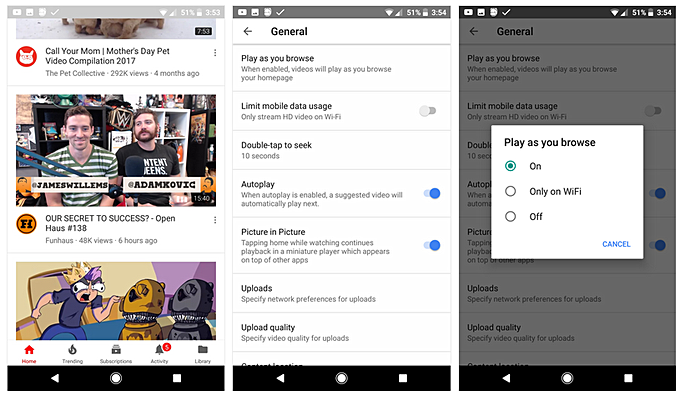
The new autoplay feature will play videos automatically when you browse through them on the homepage of YouTube mobile app. The videos will play without sound and subtitles will be turned on by default. It will give you a clear idea of what the video is about. When you’ll tap the video, it will play the video for you normally. The video which is in front of you will play automatically, if you scroll down, that video will stop playing and another video will start playing which is on the screen now.
YouTube autoplay

A similar feature is already available on Instagram as the videos in Instagram play automatically without sound and you have to tap the video to enable sound. And Facebook also has this feature.
However, this is an optional feature. You can always disable it in Settings> General > Play as you browse. You can either turn it off or set it to Wifi only, so that the videos play automatically only when you are connected to Wifi.
The feature is currently available for a small number of users. YouTube has not mentioned when it is going to make the feature available for everyone.

Saturday, 7 October 2017

Microsoft Wants To Put Fingerprint Sensor In Keyboard Keys, Files Patent

0 comments

Microsoft Wants To Put Fingerprint Sensor In Keyboard Keys, Files Patent


Fingerprint scanners, based on biometrics, are still the most convenient security systems we can have on our devices and elsewhere. Although we have other technologies including facial recognition, they have certain shortcomings and work inefficiently sometimes.
According to a new patent titled “Keyset Fingerprint Sensor,” Microsoft might be working to integrate the fingerprint sensor in keyboard keys. The fingerprint recognition might be done with the help of ultrasonic image sensing technology that can work past a thickness of 500 microns.

This new development could fix a couple of drawbacks related to the fingerprint sensors. For instance, manufacturers have to make a separate component to include fingerprint sensors in devices.
On some devices, external fingerprint sensors are required which can be connected over USB and they’re difficult to manage for the users. But even those with the sensor built-in, it needs additional space taken by the dedicated sensor button. Also, there are problems that manufacturers face with the overall design and size of the devices.
It’s yet to be known when the technology would arrive for our devices. You can read the full patent using this link.
via MSPowerUser

Google Assistant: 30+ Super Useful Voice Commands You Should Know

0 comments

  1. Google Assistant: 30+ Super Useful Voice Commands You Should Know


oogle never lags behind the current technology trends. With the coming up of Apple’s Siri, Amazon’s Alexa and Microsoft’s Cortana, Google has launched its voice assistant, Google Assistant, with some great features.
As we know, Google Assistant is a voice-based virtual personal assistant, initially debuted as a part of Google’s voice-activated speaker Google Home and Pixel phones to facilitate Google voice commands. But now Google took a step forward by adding this amazing feature to smartwatches and Android devices that run on Android 6.0 Marshmallow and 7.0 Nougat. Now, even iPhone users can get the advantage of Google Assistant commands by installing it on their devices.

Useful Google voice commands on Google Assistant

1. Get Greetings and weather details

Start your day with an early greeting and a quick weather report from your Google Assistant. Launch it and say “Good Morning,” it will greet you back along with a brief weather news of your place. Same will work for “Good Afternoon” and “Good Evening.”

2. Call me “My Lord”

Get your Google Assistant to address you with any nickname you prefer. Just launch it and say “call me (nickname),” example- “call me my lord,” and the next time your assistant greets you, you will hear “Good morning My Lord.”

3. Set your daily alarm

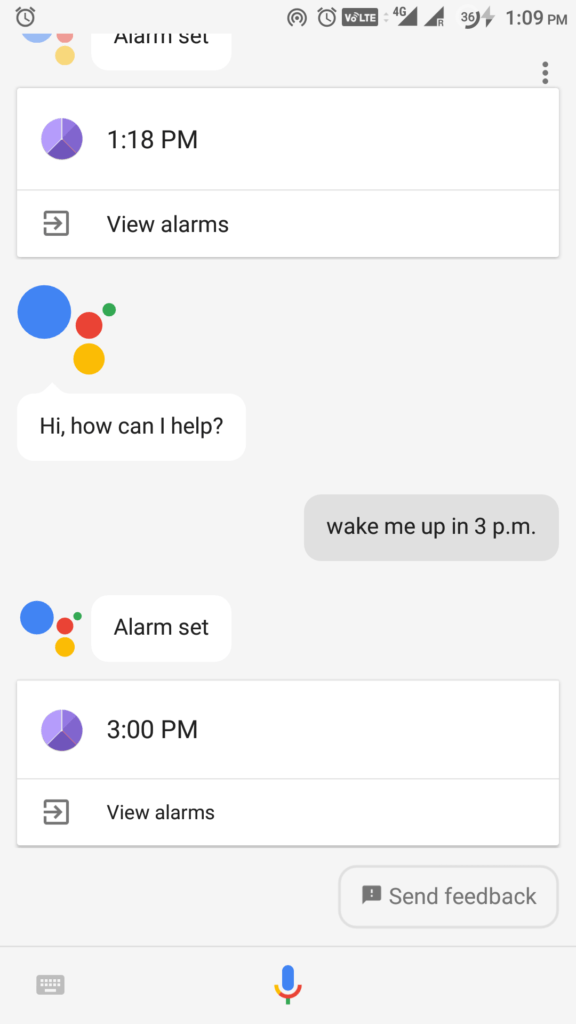
Google Assistant can wake you up at any time you prefer. Just launch your assistant and tell “Wake me up at 9 a.m.,” your alarm will be set automatically

4. Open any apps with your voice

Let’s say your hands are wet, and you got a notification in WhatsApp, then just launch your Google Assistant by saying “OK Google, open WhatsApp,” check your Whatsapp notification without physically using your hand. You can use this Google Assistant command to open any app you want.

5. Make Calls

Ask your Google Assistant to make any call you desire, just open it and say “call (the person’s name),” example: “call mom,” and your preferred number will be automatically dialed.

6. Send messages

Whenever you feel too lazy to type a lengthy text message, just use your Google Assistant to get it done for you. Say “Send text message to (the person’s name).” From there, you can dictate the entire text message that you want to deliver.

7. Get directions

Whether you are planning to go somewhere or you need directions to a nearby ATM, Google Assistant can assist you to any location you are looking for with accurate results. Go to Google Maps, and you can say commands like “How do I get to (name of the place)?” or “Show me a map of (name of the place).” You can find more commands for navigation here.

8. Set reminders

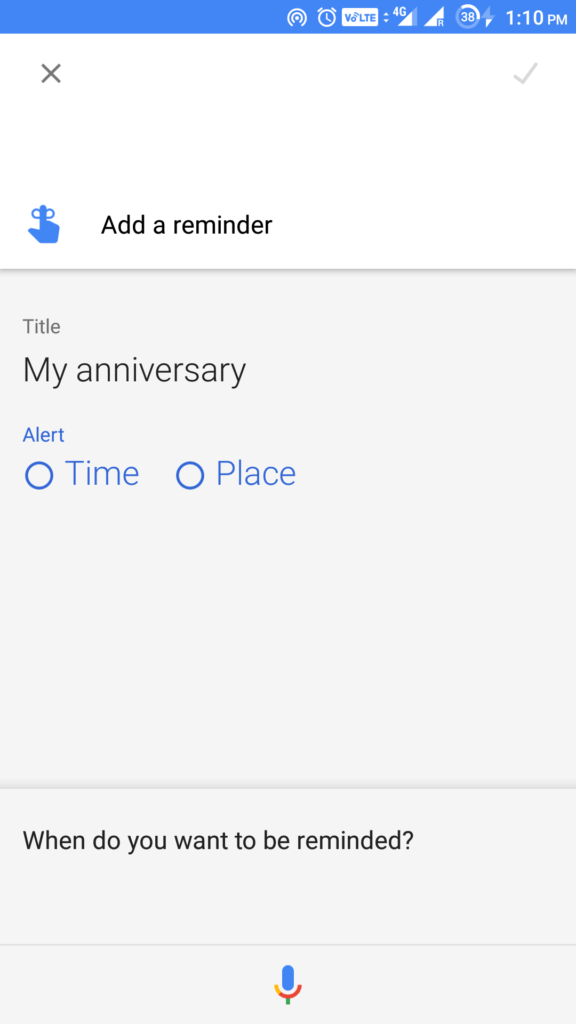
If you are too busy with your office work and you worry that you will forget to wish your wife on your anniversary date, then just set a reminder with Google Assistant, and you’ll never forget that date again. You can set it by simply saying, “OK Google, set a reminder for my wedding anniversary,” and it’s done. Useful trick, right?

9. Translate languages

Are you in a different country and you are not familiar with the country’s native language? With your Google Assistant you can get your tongue translated to any other language you prefer, just say, “How do you say ‘(your word)’ in Spanish,” example: “How do you say ‘Hello’ in Spanish.”.  The assistant will speak the translated phrase for you.

10. Play a game

When you are home alone and bored and have nothing exciting to do, just turn to the Google Assistant and say “I’m bored.” This useful command can entertain you with jokes and even play games such as solitaire or tic-tac-toe, besides, it can also surprise you with some random fun.

11. Check for your emails

You can ask the Google Assistant regarding any emails that you might have missed. Simply launch it and ask, ” Did I miss any emails from yesterday?” and with its great power to draw information from other Google apps and services, the assistant will pull up emails that remain unopened.

12. Sing a song

Get the Google Assistant to sing a song for you, whenever you feel too bored to start your playlist. Just say “OK Google, sing a song” and see what you get. Also, you can go for “OK Google, can you rap?”, or “OK Google, beatbox.”

13. Flip a coin

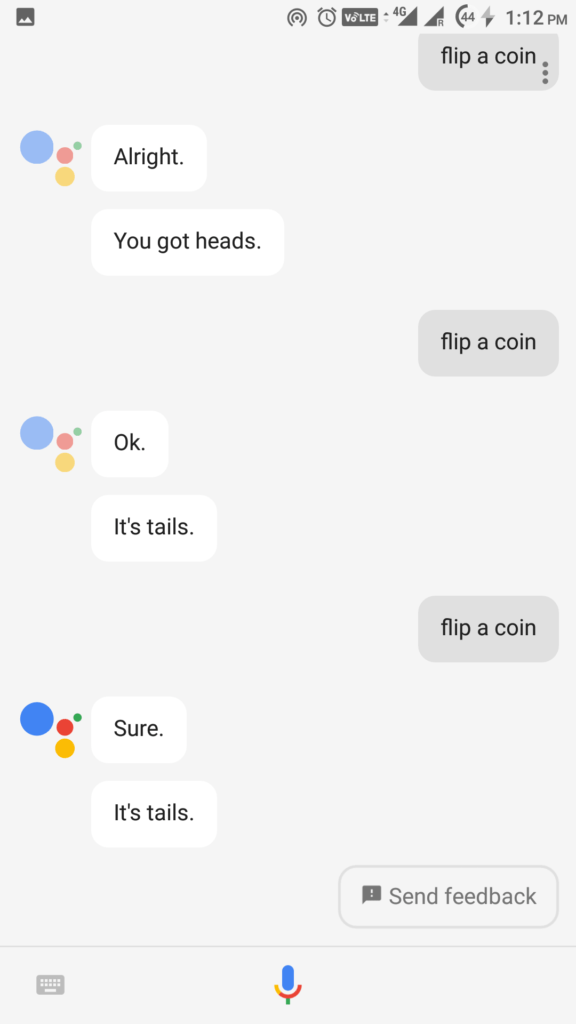
Are you in a middle of making a choice or a decision? Well, what could be a better option than flipping a coin and settling an argument? Get it done with the Google Assistant by just saying “OK Google, flip a coin.” You can also say “OK Google, roll a die” if you like things to be a little bit complicated.

14. Tune your Guitar

Use Google voice commands to tune your guitar anywhere you want, and this can be done without a tuner or an app. Just launch it and say “tune my instrument” or you can even ask for specific note like “play A flat.”

15. Get your sports scores

Google Assistant commands are there to update you anytime with the scores of your favorite sport. Simply find out who won yesterday’s big football game by asking “Who won yesterday’s Broncos-Texans game?” You will get your answer in no time.

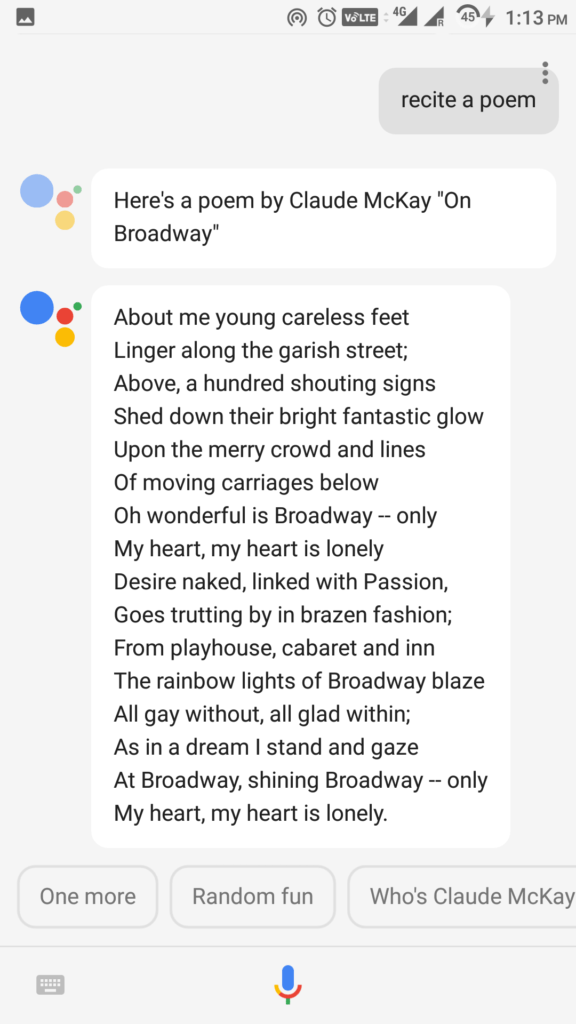
16. Recite a poem

Ask the Google Assistant to recite a poem for you, while you are relaxing somewhere all by yourself. Just open it and say “recite a poem” and be prepared for some of the classic poems by renowned authors.

17. Enhance your knowledge

As we all know Google is a powerhouse of knowledge, with the Google Assistant by your side you can fetch your mind with any topic related from history to geography from science to arts; Google Assistant can do it all.

18. Post a Tweet or Facebook status

Posting a Tweet or a Facebook status requires opening the app, writing the content and then posting it, while this might take you some time, the same can be done through Google Assistant without using your hands at all. Simply say “Ok Google, tweet ____” and tweet will be posted. Or just ask your assistant to post a tweet and the assistant opens a text box with voice recognition to compose a tweet and post it.

19. Make your shopping list.

If you use Google Keep you can simply use a helpful Google Assistant command to add items to your shopping list before you hit the supermarket. Launch it and say “add items to the shopping list.”

20. Start a conversation

All alone, feeling bored and a desire to talk to someone? Don’t worry, launch your Google Assistant and get involved with any conversation you prefer. See how it amazes you.

21. Show old photos

Are you Google Photos users? If yes, then you can use Google voice commands to show you any old photos to refresh your old memories. You can also search based on when they were taken, like for example “December” or “last month.”

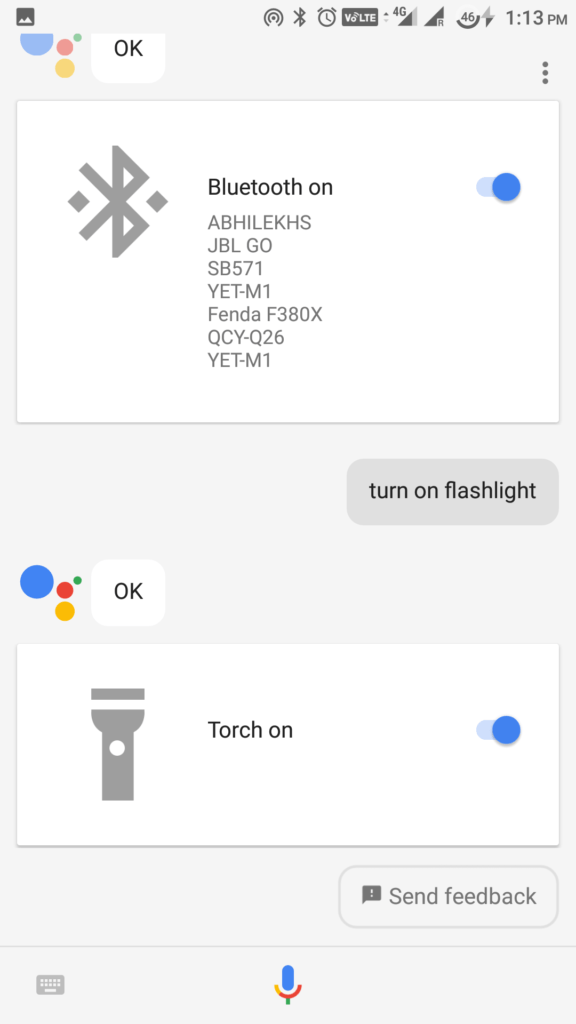
22. Turn ON a flashlight or toggle Bluetooth

When you are an Android user, you can expect lot more from Google Assistant then to simply flip a coin or play a game. Ask your assistant to turn on Flashlight or toggle Bluetooth by saying “OK Google, turn on flashlight,” or “OK Google, turn on Bluetooth.”

23. Google Assistant trick to take a selfie

Who wouldn’t want a personal assistant who will click your photo whenever you like? The Google Assistant is designed with a similar purpose. Just launch it and say “take a Selfie,” then pose for one.

24. Suggest vacation spots

Your Google Assistant can serve you as a virtual travel planner whenever you’re looking for a place to get away for a while. Ask the assistant “What are some great vacation ideas?” and it will pull up some search results, which you can further tap for more information.

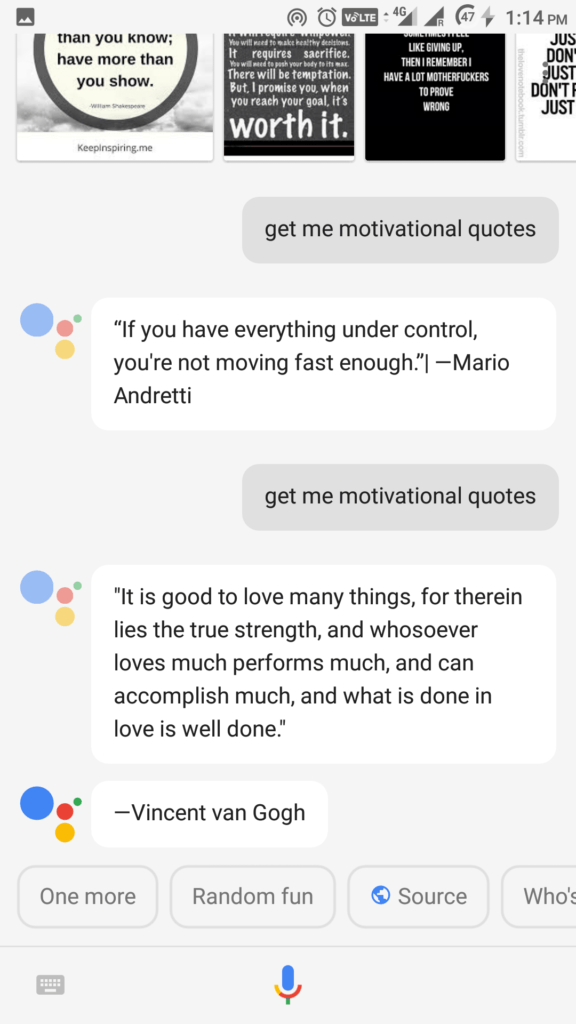
25. Get motivated

Feeling de-motivated while being buried in a bundle of work? Don’t worry; Google Assistant is designed to motivate you during your hard times. Just say “OK Google, get me a motivational quote,” and see what you get.
 These are just a few commands that you can ask the Google Assistant. There are much more and a lot of other fun activities that you can try. Some of which that you can try are:
  • Use it to do maths
  • Sing Happy Birthday
  • Generate a random number
  • Read news of your choice
  • Play music of your own choice
  • Check movie timings
  • Use it as a dictionary
Did you find this list of Google Assistant voice commands to be useful? Share your reviews and some other useful tricks in the comments below.

Friday, 22 September 2017

Lenovo Yoga 910 Price, Specifications & Review

0 comments

Lenovo Yoga 910
 Price, Specifications & Review

₨ 109,999.00

Brand: Lenovo
Category: Laptops

Product Overview

Lenovo Yoga 910 specifications

Processor

  • Processor Type
    7th Generation
  • Processor Speed
    2.7 GHz
  • Processor Boost
    Turbo Boost 3.5
  • Processor Cores
    (2 Cores
  • Processor Cache
    4 MB Cache
  • 64-bit Computing
  • Processor Model
    Intel Core i7-7500U Processor

Memory

  • RAM (Memory)
    8 GB
  • RAM Type
    DDR4 2133 MHz

Storage

  • Storage Type
    solid state drive
  • Storage Capacity
    256 GB
  • Technology
    SSD

Display

  • Display Type
    FHD IPS Multi-touch with integrated camera
  • Size
    13.9"
  • Resolution
    1920x1080
  • Touch Screen
    YES

Graphics

  • GPU
    Intel HD graphics 620
  • GPU Memory
    Intel HD graphics 620

Connectivity

  • Web Cam
    YES
  • Bluetooth
    YES
  • Wi-fi
    YES
  • GPS
    NO
  • NFC
  • HDMI Port
    NO
  • Ethernet Port
    NO
  • Card Reader
  • Headphone Jack
  • Microphone Jack

Battery

  • Battery Type
    Li-Ion (Lithium Ion)
  • Capacity
    48 Watt Hour Li-Polymer
  • Battery Cells
    4 Cell
  • Battery Backup
    Up to 9 hours

Dimensions

  • Height
    224.5 nn
  • Width
    323 mm
  • Depth
    14.3 mm
  • Weight
    3.04

Bill Gates meets Pakistan’s PM in New York, appreciates Polio eradication efforts

0 comments


Appreciating the Pakistan’s efforts in eradicating Polio, Bill Gates has vowed to pledge the efforts that can be made through Bill and Melinda Gates Foundation towards the good cause.

Microsoft’s founder and famous philanthropist, Bill Gates met with Pakistan’s premier, Shahid Khaqan Abbasi in New York this Thursday. Acknowledging the efforts made by Pakistani government to eradicate Polio from its land, the world’s richest person then assured Shahid Khaqan Abbasi that every possible assistance would be lent from their side too.

Bill Gates said that he was willing to personally work to alleviate the living standards of a common Pakistani individual and that his team at the Bill and Melinda Gates Foundation, will further be extending their health related immunization programs to cater the Pakistani audience in a better way.


As far as the tech and economy related collaboration between the two entities is concerned, Bill Gates said that he was willing to offer finance-related services to the Pakistani populace. The Pakistan’s prime minister then told him about the efforts that the Pakistani authorities have been making to culminate the virus.

Shahid Khaqan Abbasi is currently on a visit to the US to attend the 72nd session of the UN General Assembly in New York. Bill Gates, on the other hand, is currently the world’s most richest person with a constant title tussle going on with the Amazon’s founder Jeff Bezos and the Spanish billionaire Amancio Ortega.